💡 Full working example available on GitHub: sign-pdf-with-hashicorp-vault-transit-dotnet
Introduction
Signing PDFs on a server sounds simple until the security review asks where the private key lives. A PFX file next to the application can be stolen together with the server, and teams that already run HashiCorp Vault want the signing key there too.
External signing with Vault Transit is a GroupDocs.Signature for .NET setup that keeps the RSA private key inside HashiCorp Vault and sends only the document digest out to be signed. GroupDocs.Signature prepares the PDF, computes the digest and builds the signature; Vault signs the 32-byte digest and returns the result. The key is created in Vault, marked not exportable, and never reaches your process.
In this tutorial you will run Vault locally in Docker, implement the ICustomSignHash signer, make a
certificate for the Vault key, sign and verify a PDF, then switch the app to a least-privilege token and
rotate the key. The code is C# on .NET 10 with GroupDocs.Signature 26.9.
Why keep the signing key in Vault instead of a PFX file?
A PFX file is a copy of the private key: whoever reads it and its password can sign in your name. In Vault Transit the key is generated inside Vault and cannot be exported. The application holds only a short-lived token that may ask for signatures, Vault logs every request, and an administrator can revoke the token or rotate the key at any time.
How the signing flow works
A PDF digital signature needs two things: a signature over the document, and a certificate that tells the reader which public key checks it. GroupDocs.Signature handles the PDF side and calls your code exactly once for the signature:
- The app reads the Transit key from Vault: its latest version and public key.
- The app builds a certificate around that public key. Vault signs the certificate too, so no private key exists anywhere else.
- GroupDocs.Signature computes the SHA-256 digest of the PDF and calls
ICustomSignHash.CustomSignHash. - The signer posts the digest to Vault’s
transit/signendpoint and gets backvault:v1:<signature>. - GroupDocs.Signature embeds the signature and the certificate in the PDF.
Prerequisites
- .NET 10 SDK
- Docker (Desktop on Windows and macOS)
- GroupDocs.Signature for .NET 26.9 or later; without a licence it runs in evaluation mode, which accepts documents of up to 2 pages (get a temporary licence)
- A 1-2 page PDF
dotnet add package GroupDocs.Signature
Step 1: Start Vault and create the signing key
For a local test, Vault’s dev mode is enough: it starts unsealed, keeps everything in memory and has a fixed root token. HashiCorp is clear that it must never run in production (dev server docs).
services:
  vault:
    image: hashicorp/vault:2.2.1
    container_name: vault-dev
    ports:
      - "8200:8200"
    environment:
      VAULT_DEV_ROOT_TOKEN_ID: "dev-only-token"
      VAULT_DEV_LISTEN_ADDRESS: "0.0.0.0:8200"
      VAULT_ADDR: "http://127.0.0.1:8200"   # for the vault CLI inside the container
    cap_add:
      - IPC_LOCK
Start it with docker compose up -d, switch on the Transit engine and create an RSA-2048 key. The last
command asks Vault for the private key:
docker exec vault-dev vault secrets enable transit
docker exec vault-dev vault write -f transit/keys/pdf-signing-key type=rsa-2048
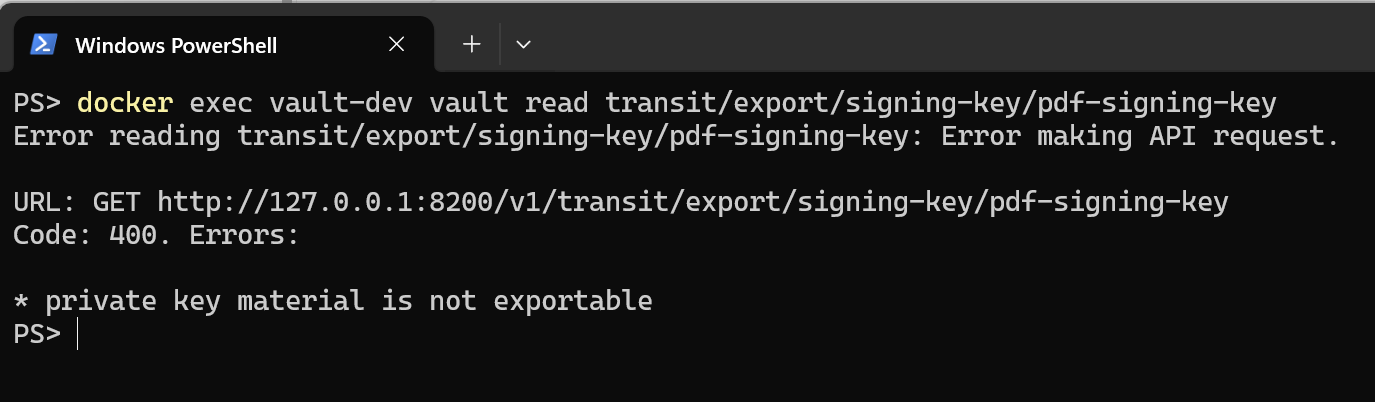
docker exec vault-dev vault read transit/export/signing-key/pdf-signing-key
# Code: 400. Errors:
# * private key material is not exportable
When I ran these commands for the first time, that refused export was the most convincing line of the whole
setup: even the root token cannot take the key out. Transit keys are created with exportable=false by
default (Transit API).
Step 2: Make a certificate for the Vault key
The PDF reader checks the signature with the public key from the certificate, so the certificate must hold
the Vault public key. .NET’s CertificateRequest can build it; a small X509SignatureGenerator subclass
sends the certificate’s own digest to Vault, so Vault signs the certificate as well.
using RSA publicKey = RSA.Create();
publicKey.ImportFromPem(key.PublicKeyPem);   // public half, read from transit/keys/<name>

var subject = new X500DistinguishedName("CN=Vault Transit Signer");
var request = new CertificateRequest(subject, publicKey,
    HashAlgorithmName.SHA256, RSASignaturePadding.Pkcs1);
request.CertificateExtensions.Add(
    new X509KeyUsageExtension(X509KeyUsageFlags.DigitalSignature, false));

// Hashes the certificate data locally and lets Vault sign the digest
var generator = new VaultX509SignatureGenerator(publicKey, vault, keyName, key.Version);

// Valid from yesterday, so clock and time-zone differences cannot make it "not yet valid"
DateTimeOffset now = DateTimeOffset.UtcNow;
X509Certificate2 certificate = request.Create(subject, generator,
    now.AddDays(-1), now.AddYears(1), RandomNumberGenerator.GetBytes(16));
The start date matters more than it looks. A PDF reader checks the certificate against the signing time
stored in the PDF. In our first run the certificate started one second before signing, and Acrobat on a
machine two hours east of UTC reported the signer’s identity as “expired or not yet valid”: the default
signing time is UTC, stored without a time zone, so Acrobat read it as local time, two hours too early.
Starting the certificate one day earlier removes that edge, and Step 4 passes a local signing time, which
GroupDocs.Signature 26.9 stores with its time zone (for example +02'00').
This certificate is self-signed, which is fine for a demo. In production you would get a certificate from a
CA for the same key: Transit can sign a CSR with the key itself (transit/keys/:name/csr), or Vault’s
PKI engine can act as an internal CA.
Step 3: Implement ICustomSignHash with Vault Transit
ICustomSignHash is the hook GroupDocs.Signature calls when the private key is somewhere else. It receives a
digest, not the document, and must return the raw signature bytes
(custom hash signing docs).
public class VaultSigner : ICustomSignHash
{
    private readonly VaultTransitClient _vault;
    private readonly string _keyName;
    private readonly int _keyVersion;   // the version that is in the certificate

    public VaultSigner(VaultTransitClient vault, string keyName, int keyVersion)
    {
        _vault = vault;
        _keyName = keyName;
        _keyVersion = keyVersion;
    }

    public byte[] CustomSignHash(byte[] signableHash, HashAlgorithm hashAlgorithm,
        SignatureContext signatureContext)
    {
        // The interface is synchronous, so the HTTP call is awaited here
        return _vault.SignHashAsync(_keyName, _keyVersion, signableHash,
                ToVaultHashAlgorithm(hashAlgorithm))
            .GetAwaiter().GetResult();
    }
}
Since version 26.9, hashAlgorithm is the algorithm GroupDocs.Signature really used, never Auto, so the
signer can map it one to one: Sha1 to sha1, Sha256 to sha2-256, Sha384 to sha2-384, Sha512 to
sha2-512.
The request to Vault is where the details matter:
var request = new
{
    input = Convert.ToBase64String(hash),  // the digest from GroupDocs.Signature
    key_version = keyVersion,              // same version as in the certificate
    hash_algorithm = hashAlgorithm,        // for example "sha2-256"
    prehashed = true,                      // already a hash: do not hash it again
    signature_algorithm = "pkcs1v15"       // Vault's default for RSA is PSS
};
using HttpResponseMessage response =
    await _httpClient.PostAsJsonAsync($"/v1/transit/sign/{keyName}", request);
await EnsureSuccessAsync(response);   // throws with Vault's own error text

// Vault answers with "vault:v<version>:<base64 signature>"
using JsonDocument json =
    JsonDocument.Parse(await response.Content.ReadAsStringAsync());
string signature =
    json.RootElement.GetProperty("data").GetProperty("signature").GetString()!;
return Convert.FromBase64String(signature[(signature.LastIndexOf(':') + 1)..]);
Three settings decide whether the PDF verifies:
prehashed = true: without it Vault hashes the digest a second time, and the signature covers the wrong value.signature_algorithm = "pkcs1v15": the PDF sayssha256WithRSAEncryption, so the signature must be PKCS#1 v1.5, not PSS.key_version: it pins the signature to the key version in the certificate (more in Step 6).
Vault also checks that the digest length matches hash_algorithm. A 20-byte SHA-1 digest sent as
sha2-256 fails with crypto/rsa: input must be hashed message, so a wrong mapping shows up as an error, not
as a broken signature.
Step 4: Sign and verify the PDF
Now the PDF part is short. The certificate goes in as an object, and the Vault signer as CustomSignHash:
var options = new DigitalSignOptions
{
    // Public key only: pass the certificate object, not a file path.
    // A local SignTime is stored in the PDF with its time zone.
    Signature = new DigitalSignature(certificate) { SignTime = DateTime.Now },
    CustomSignHash = new VaultSigner(vault, "pdf-signing-key", key.Version),
    HashAlgorithm = HashAlgorithm.Sha256,
    // Visible box in the bottom-right corner of the page
    Visible = true,
    VerticalAlignment = VerticalAlignment.Bottom,
    HorizontalAlignment = HorizontalAlignment.Right,
    Margin = new Padding { Bottom = 60, Right = 50 },
    Width = 300, Height = 80,
    Reason = "Document signed with HashiCorp Vault Transit"
};

using (var signature = new Signature("document.pdf"))
{
    signature.Sign("signed_document.pdf", options);
}
DigitalSignOptions(path) expects a certificate file that contains a private key. Here the key is in
Vault, so the certificate object is the form to use.
To check the result, verify the signed file against the same certificate:
using var certStream = new MemoryStream(certificate.Export(X509ContentType.Cert));
using var signed = new Signature("signed_document.pdf");
VerificationResult result = signed.Verify(new DigitalVerifyOptions(certStream));
Console.WriteLine($"Signature valid: {result.IsValid}");
Step 5: Run the sample
The complete sample enables Transit and creates the key on its first run when the key is missing, so after
docker compose up -d one command is enough:
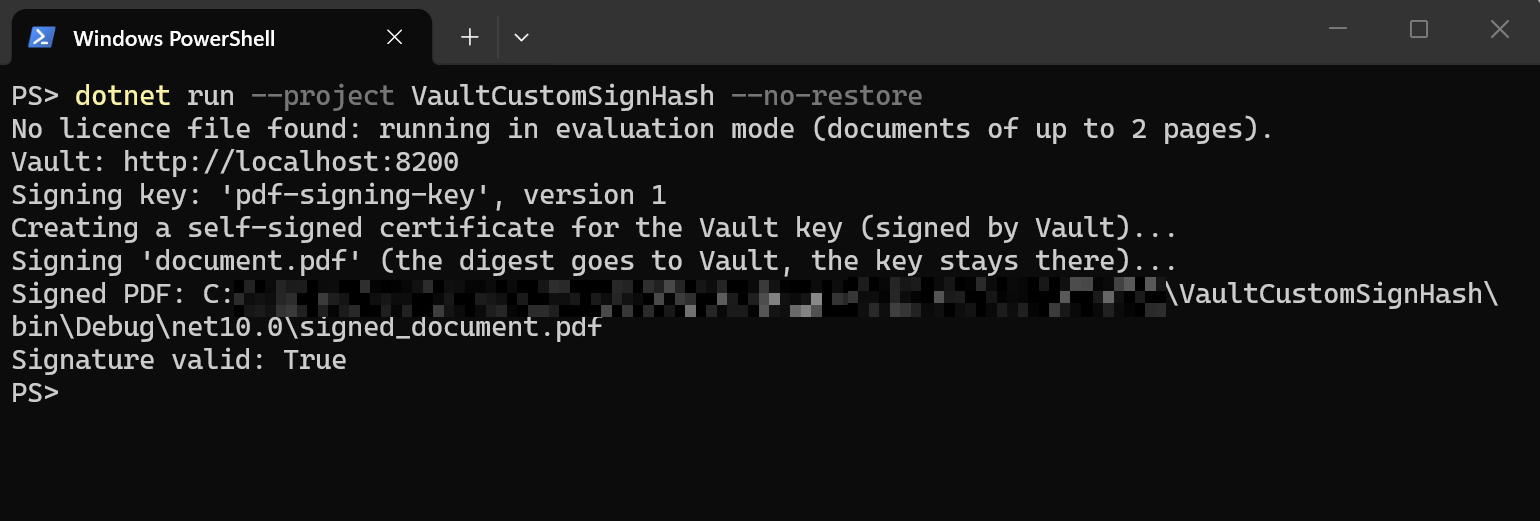
dotnet run --project VaultCustomSignHash
No licence file found: running in evaluation mode (documents of up to 2 pages).
Vault: http://localhost:8200
Signing key: 'pdf-signing-key', version 1
Creating a self-signed certificate for the Vault key (signed by Vault)...
Signing 'document.pdf' (the digest goes to Vault, the key stays there)...
Signed PDF: ...\VaultCustomSignHash\bin\Debug\net10.0\signed_document.pdf
Signature valid: True
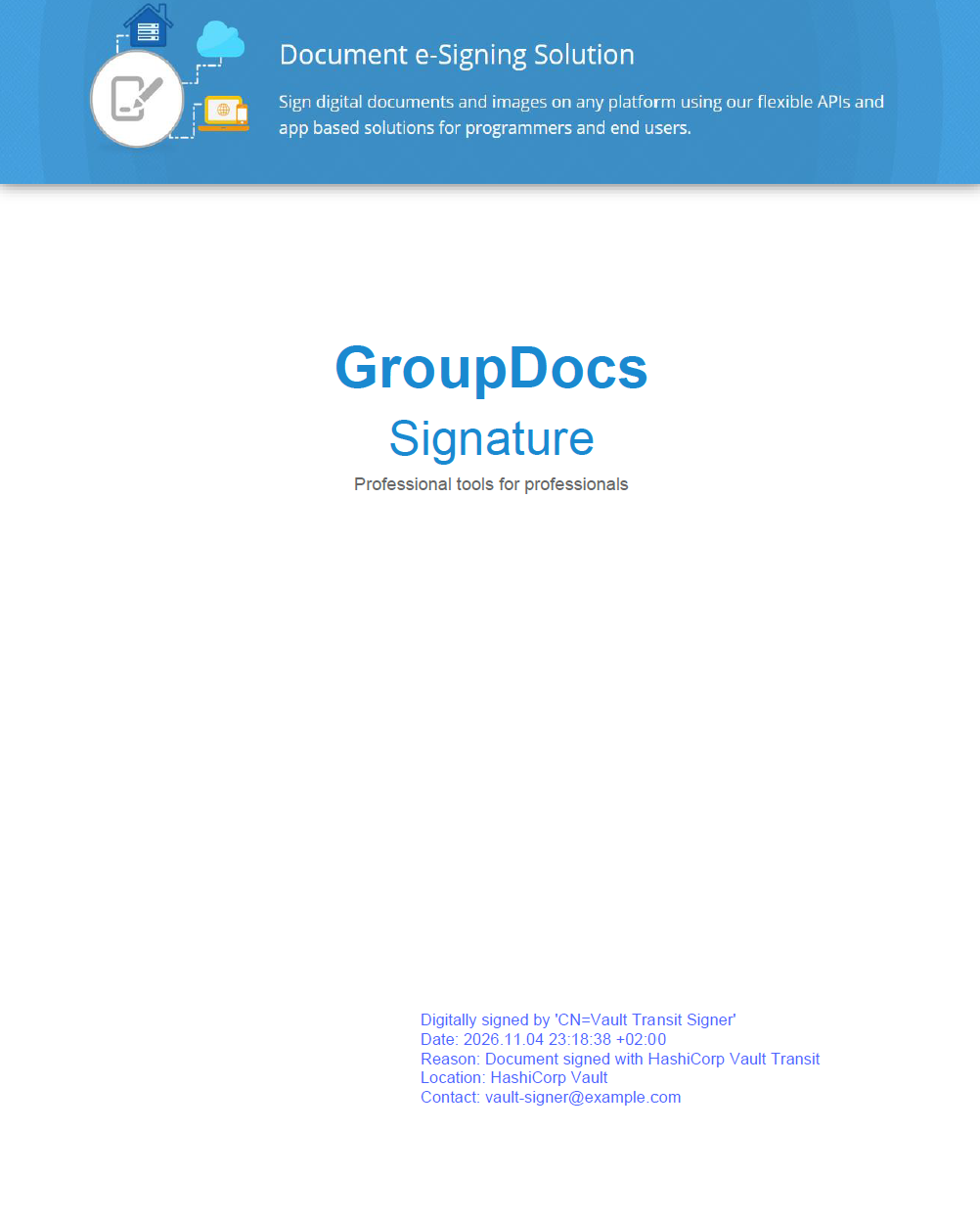
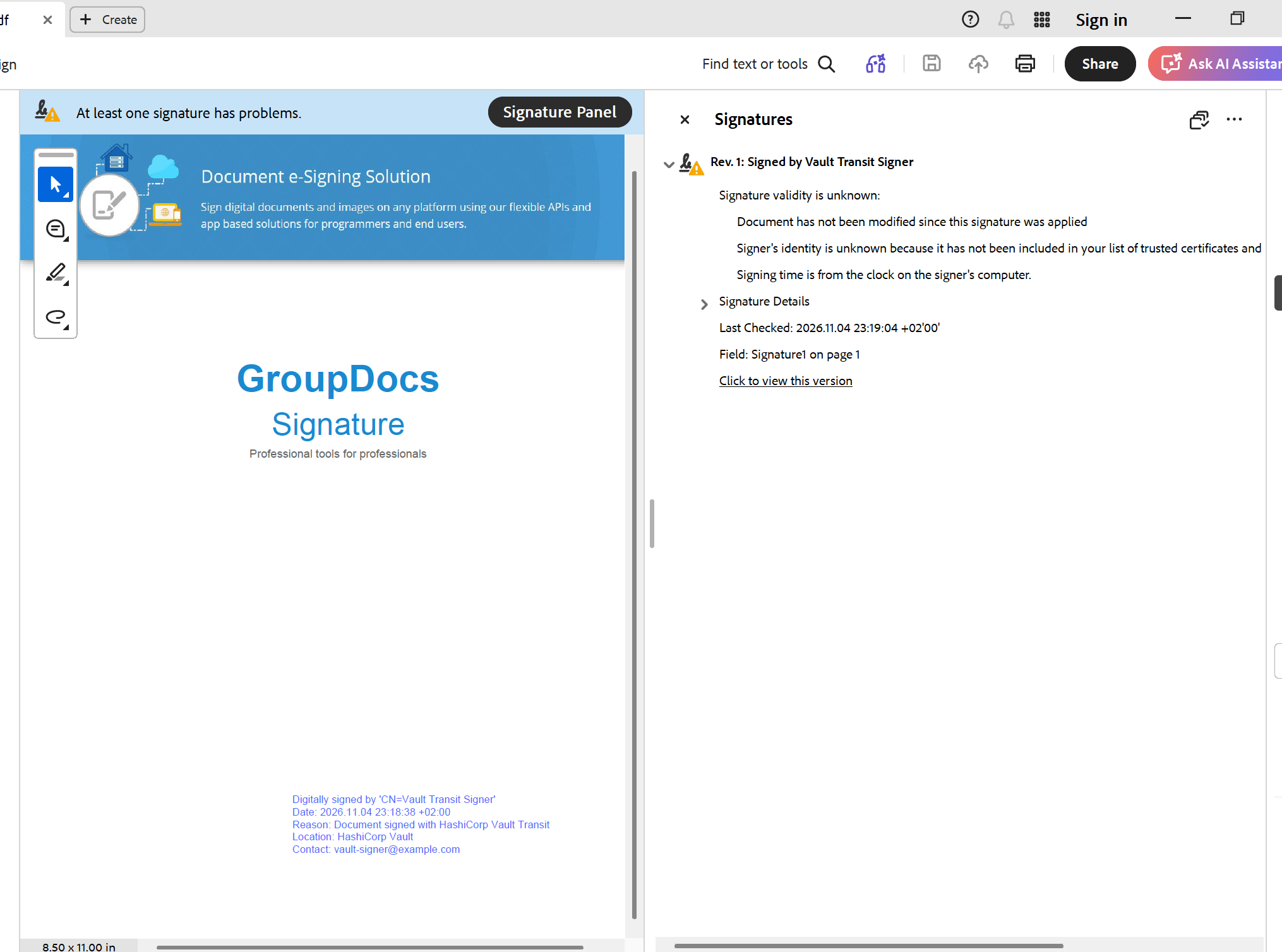
Open the signed PDF in Adobe Acrobat and the Signatures panel reports “Document has not been modified since this signature was applied” and “Signer’s identity is unknown because it has not been included in your list of trusted certificates”. That is the expected result for a self-signed certificate: the signature is intact, but no CA has vouched for the name in it. With a CA-issued certificate the same code gives a trusted signature.
Step 6: Give the app a least-privilege token
So far the app used the root token, which can do anything in Vault. A signing service needs exactly two rights: read the key (for the public key and version) and sign with it. Vault policies are deny by default (policies), so the policy lists only those:
path "transit/keys/pdf-signing-key" {
  capabilities = ["read"]
}

path "transit/sign/pdf-signing-key" {
  capabilities = ["update"]
}
The app then logs in with AppRole, Vault’s login method for services, and gets a token that carries only this policy and expires after 15 minutes:
docker cp vault/sample-signer.hcl vault-dev:/tmp/sample-signer.hcl
docker exec vault-dev vault policy write sample-signer /tmp/sample-signer.hcl
docker exec vault-dev vault auth enable approle
docker exec vault-dev vault write auth/approle/role/pdf-signer `
    token_policies=sample-signer token_ttl=15m token_max_ttl=30m secret_id_ttl=60m

$roleId = docker exec vault-dev vault read -field=role_id `
    auth/approle/role/pdf-signer/role-id
$secretId = docker exec vault-dev vault write -f -field=secret_id `
    auth/approle/role/pdf-signer/secret-id
$env:VAULT_TOKEN = docker exec vault-dev vault write -field=token auth/approle/login `
    role_id=$roleId secret_id=$secretId
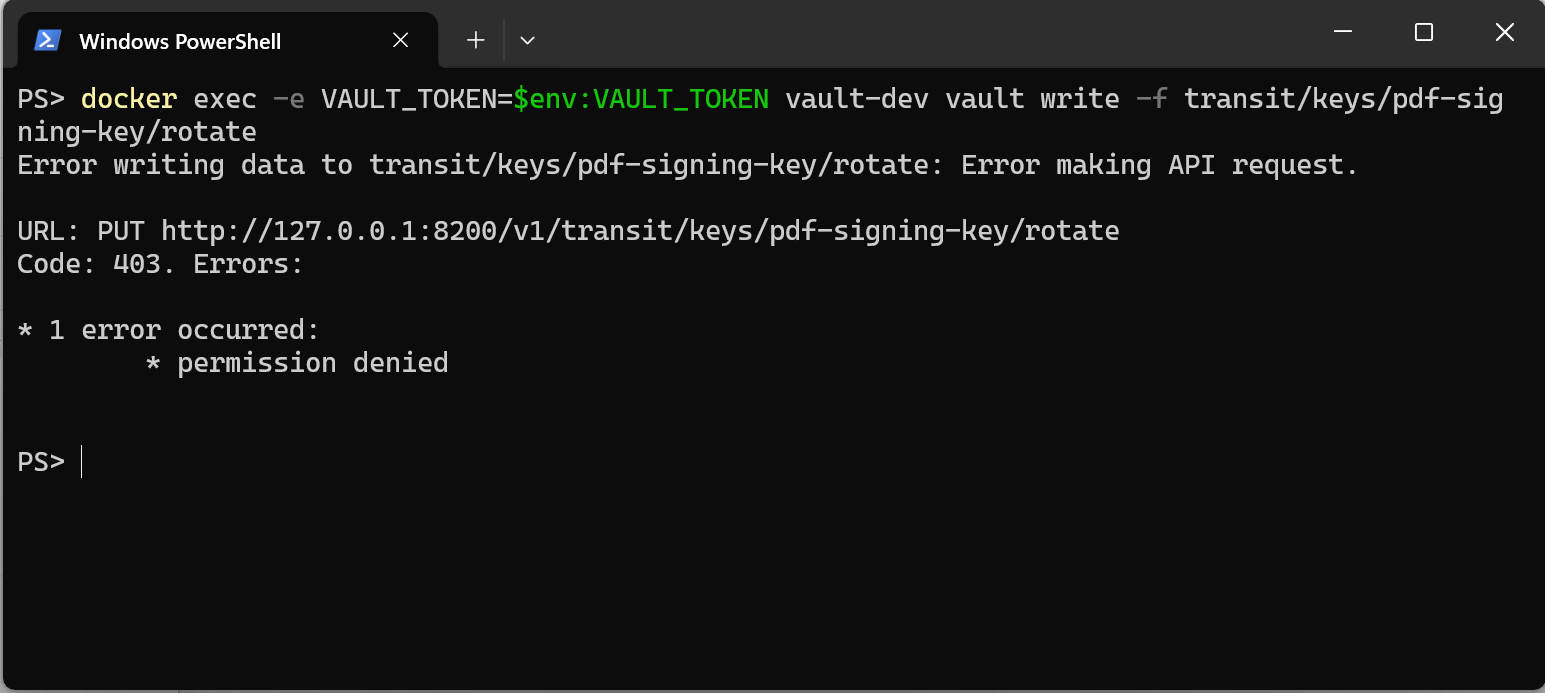
The sample reads VAULT_TOKEN, so it signs with the new token without any code change. The same token
cannot rotate the key or create a new one: Vault answers 403 permission denied. Because the sample reads
the key first and runs its one-time setup only when the key is missing, the least-privilege token is all it
needs.
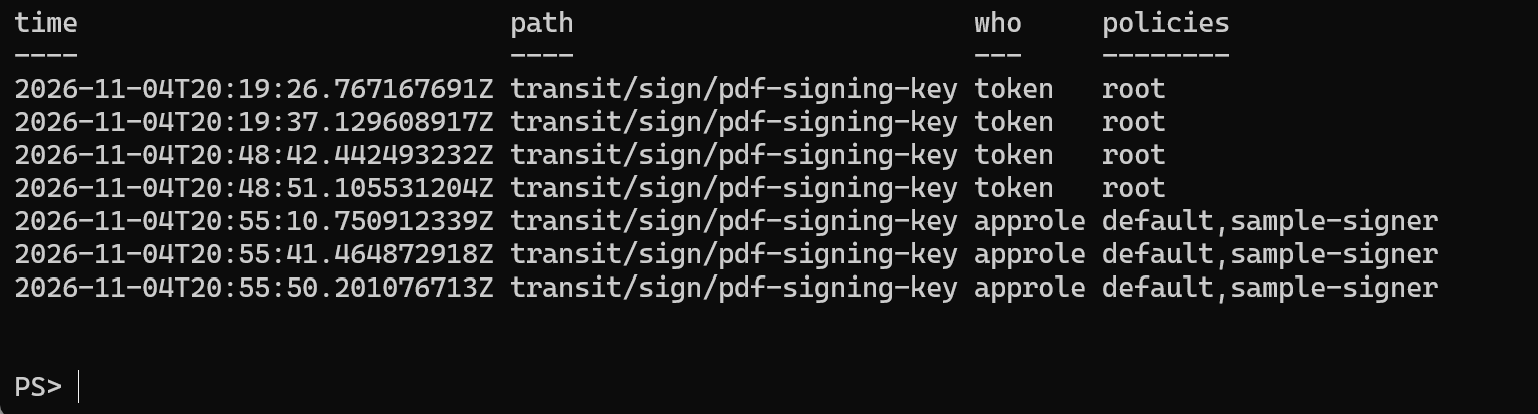
With an audit device switched on (vault audit enable file file_path=/vault/logs/audit.log), every request
is logged with its time, path, policies and source address. Each run of the sample shows two sign requests:
one for the certificate, one for the PDF digest. Values such as the digest are stored as HMAC-SHA256 hashes,
so the log proves who signed when without exposing what
(audit devices).
Step 7: Rotate the key safely
Rotation adds a new key version and keeps the old ones. After
vault write -f transit/keys/pdf-signing-key/rotate, Transit signs with version 2 unless the request asks
for another version, and version 2 has a different public key.
A certificate holds one public key, so the signature and the certificate must come from the same version.
If the certificate is built from version 1 while Vault signs with the latest version, every PDF signed after
a rotation fails verification, without any error at signing time. The sample avoids this by reading
latest_version once and using it twice: for the certificate and as key_version on every sign request.
After a rotation it prints Signing key: 'pdf-signing-key', version 2 and the signature is valid again.
PDFs signed before the rotation stay valid, because each one carries its own certificate and signature.
With a CA certificate, plan the rotation: make the new version, get a certificate for it, switch the app,
then stop the old version from signing with min_encryption_version.
Pitfalls we hit
| Symptom | Cause | Fix |
|---|---|---|
Specified certificate doesn't contain private key |
certificate passed as a file path | pass new DigitalSignature(certificate) |
| Acrobat: identity “expired or not yet valid” for a new certificate | certificate starts at the signing second; default UTC time carries no zone | start the certificate a day earlier; set SignTime = DateTime.Now |
| PDF does not verify after a key rotation, no error | certificate and signature from different key versions | send the certificate version as key_version |
Vault 500 input must be hashed message |
digest length and hash_algorithm do not match |
map the algorithm GroupDocs.Signature reports |
| Signature never verifies | prehashed missing, or PSS not PKCS#1 v1.5 |
prehashed=true, signature_algorithm=pkcs1v15 |
server gave HTTP response to HTTPS client from the vault CLI |
CLI defaults to HTTPS | set VAULT_ADDR=http://127.0.0.1:8200 in dev mode |
Moving to production
- Persistent storage and TLS, with
VAULT_ADDRonhttps://(production hardening). - Revoke the root token; let the app log in with AppRole and short TTLs.
- An administrator enables Transit and creates the key; the app gets only the Step 6 policy.
- A CA certificate for the same key, instead of the self-signed one.
- At least one audit device on: if none can write, Vault refuses the request.
- Key rotation planned together with certificate renewal.
Conclusion
A signer with one method and a small HTTP client are enough for GroupDocs.Signature for .NET
to sign PDFs with a key it never sees: ICustomSignHash hands the digest to Vault Transit, Vault returns
the signature, and the key stays in Vault. You get least-privilege access, an audit trail and key rotation
with it, and the same hook fits any external signer that can sign a prehashed digest.
Next steps:
- Read the custom hash signing guide for other external signers.
- Try the full sample project from GitHub and swap in your own Vault address and token.